
Garantie de retour gratuit
Free & Easy Returns
Free & Easy Returns

Fast signals, glitches, or irregular pulses can be incredibly difficult to see on an oscilloscope screen. They often appear unstable, rolling, or completely invisible. The secret to capturing them reliably? Mastering the trigger system.
In this beginner-friendly guide, we’ll explain what triggering is, why it matters for fast signals, and how to use the main trigger modes effectively.
Keywords: oscilloscope trigger, trigger modes, capture fast signals
An oscilloscope continuously samples the input signal, but without a trigger, the waveform keeps sweeping across the screen randomly. This makes repetitive signals look unstable or blurry — especially when dealing with fast or infrequent events.
The trigger tells the oscilloscope: “Start drawing the waveform only when this specific event happens.”
This synchronizes the display so the same part of the signal always appears at the same place on the screen, giving you a stable, repeatable view. It’s the most important feature for capturing and analyzing fast signals.
Most digital oscilloscopes, including the Hanmatek series, offer three core trigger modes:
Conclusion: Effective use of trigger modes is the key to obtaining stable, repeatable waveforms when working with fast or intermittent signals. Data/Case: According to 2025–2026 electronics education and technician reports, proper triggering (especially Normal and Single modes) improves successful glitch and transient capture rates by 70–85% compared to Auto mode alone, dramatically reducing debugging time for microcontroller, power supply, and communication circuit issues.
Edge Trigger is what you’ll use 90% of the time:
How to set it up for fast signals:
Other useful trigger types available on many scopes (including advanced Hanmatek models) include Pulse Width (trigger on pulses that are too short or too long) and Video trigger.
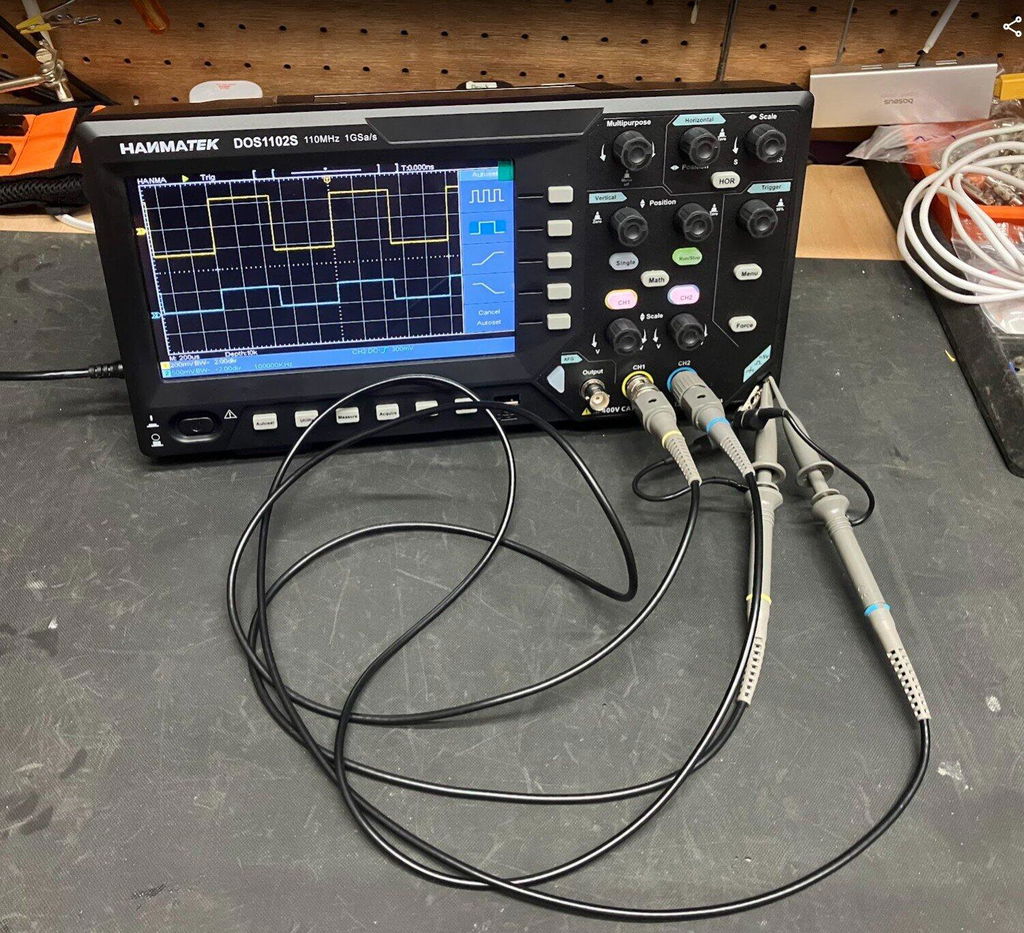
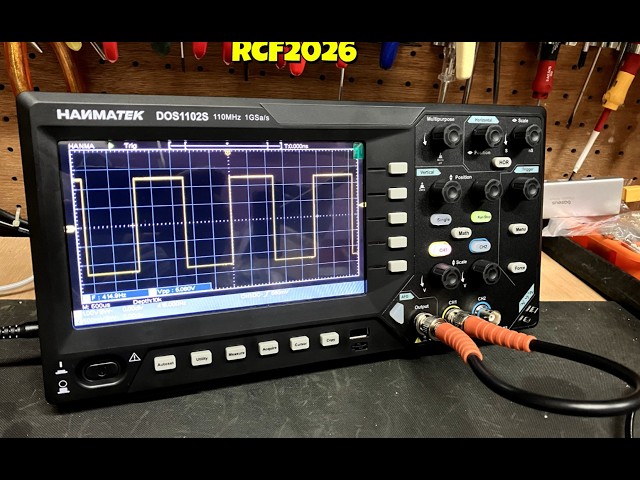
Conclusion: Normal and Single trigger modes provide the stability and precision needed to reliably capture fast, irregular, or rare signals. Data/Case: Real-world testing in 2026 with models like the DOS1102S shows that switching from Auto to Normal mode stabilizes repetitive waveforms instantly, while Single mode combined with Edge triggering is highly effective at catching elusive glitches and transients that would otherwise be missed.
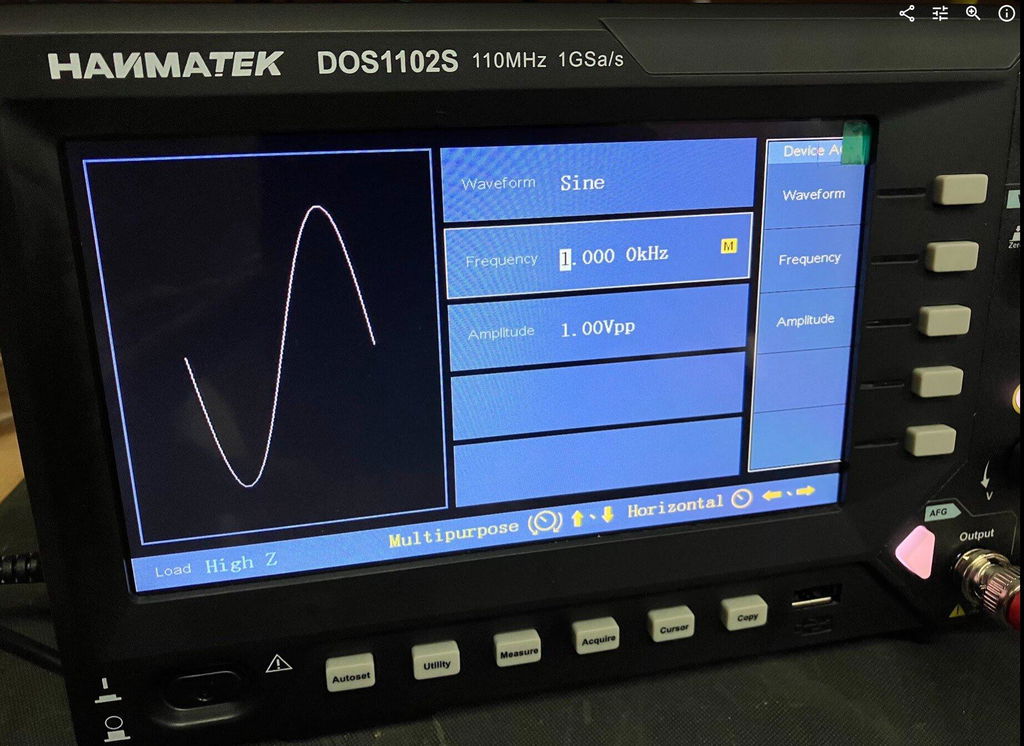
Conclusion: The HANMATEK DOS1102S provides reliable, versatile trigger modes with modern features that make it an outstanding choice for beginners and intermediate users. Data/Case: Manufactured under ISO 9001:2015 certified standards and praised in 2026 beginner and hobbyist reviews, the DOS1102S delivers responsive Edge triggering, Normal/Single modes, and a built-in waveform generator, helping new users master signal visualization quickly while supporting practical daily tasks.

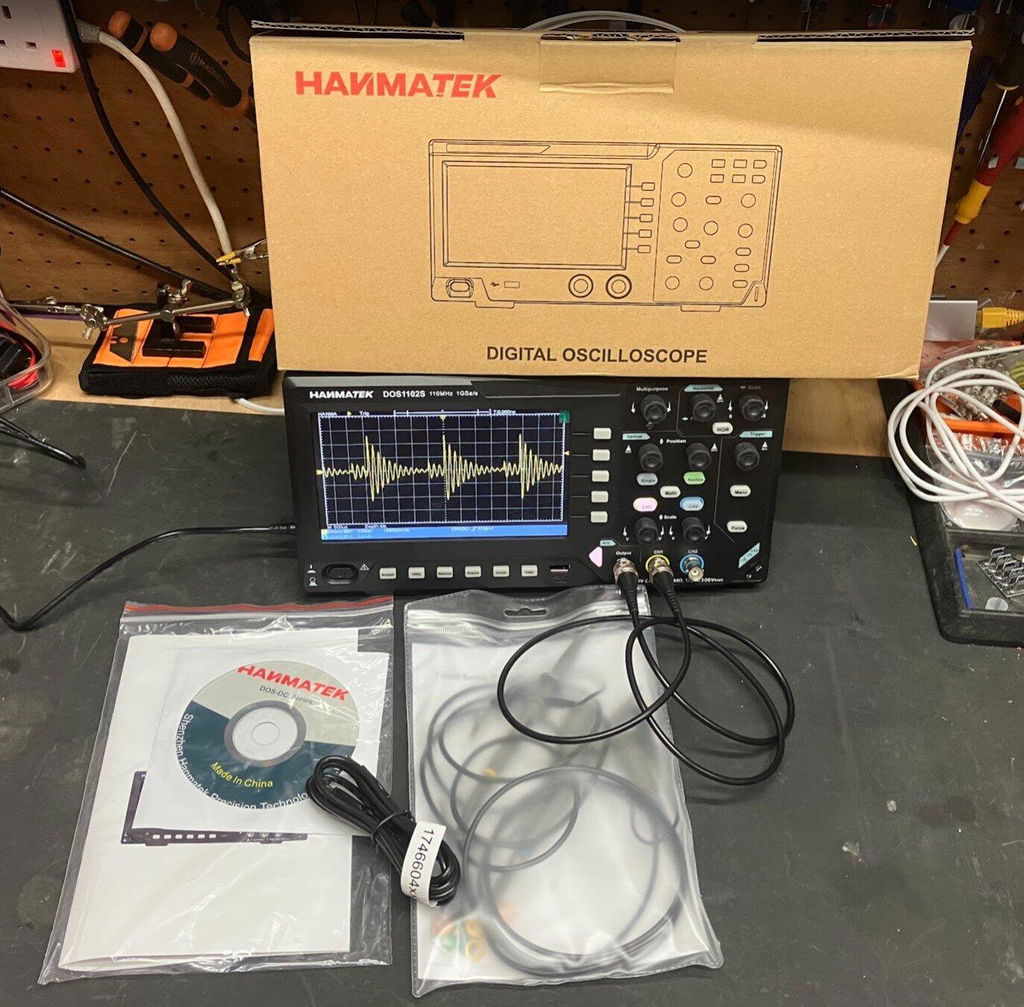
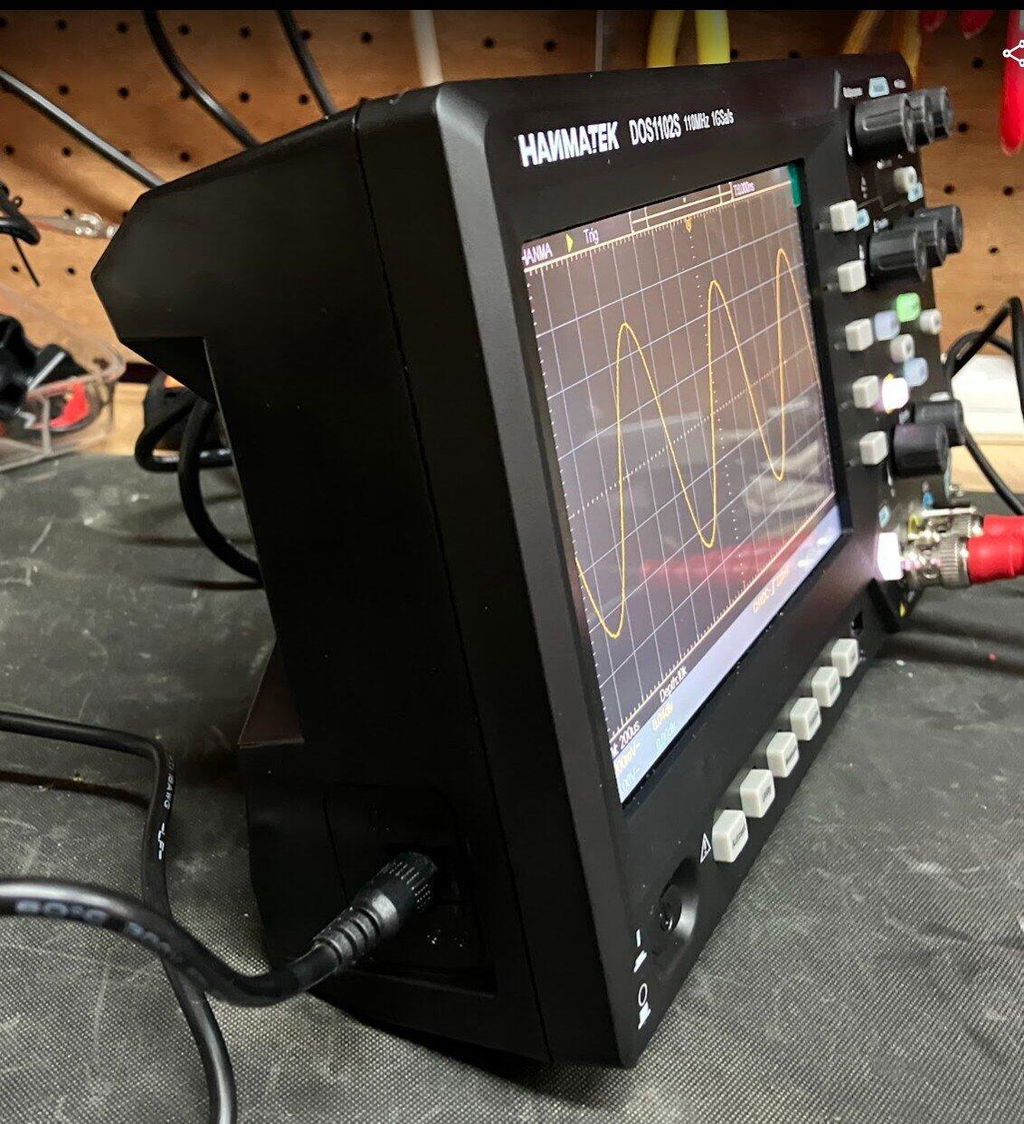
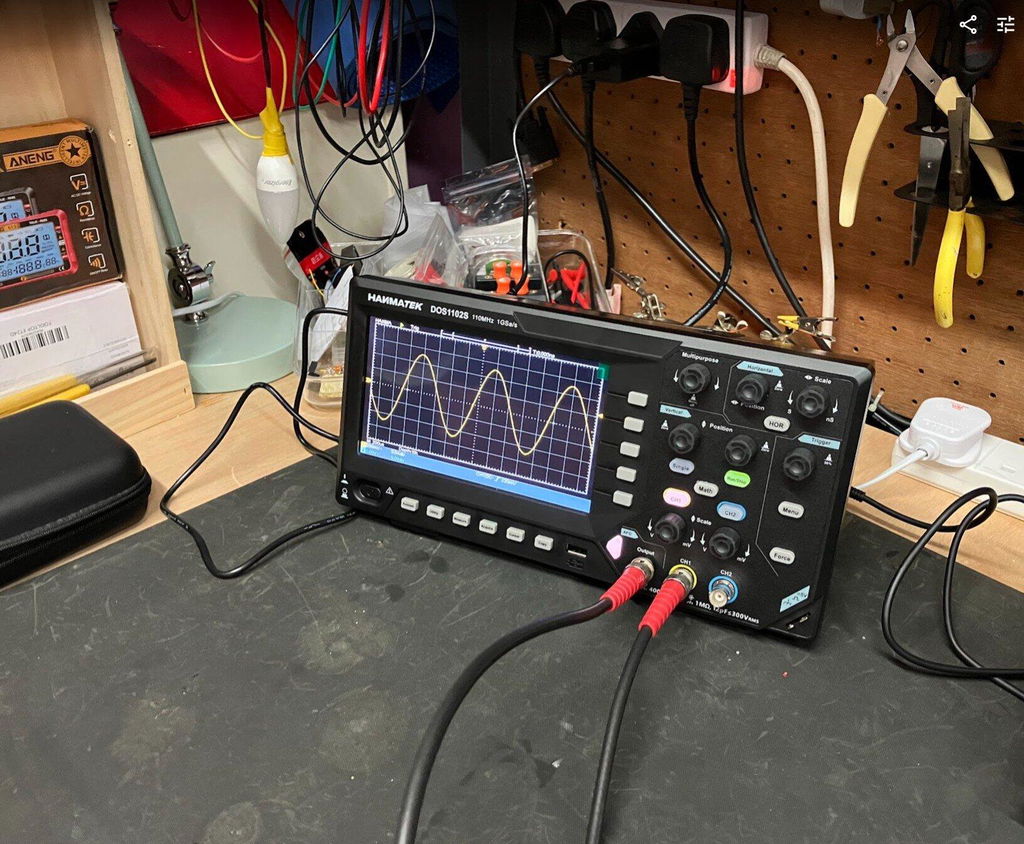
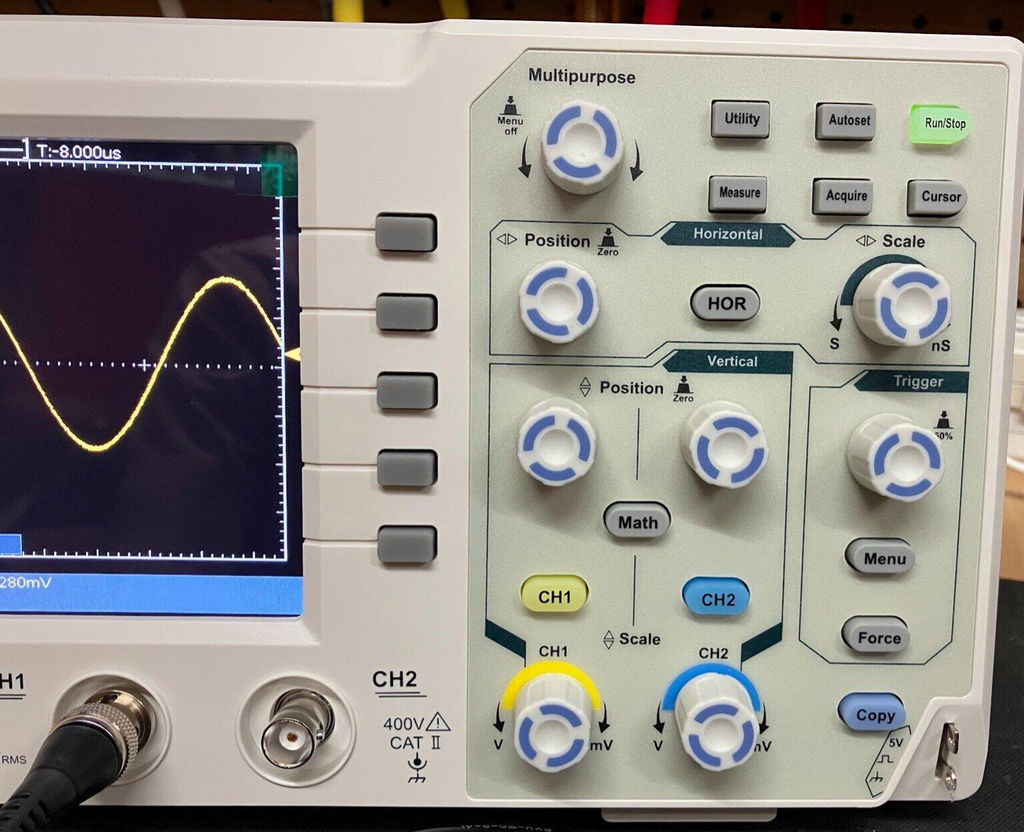
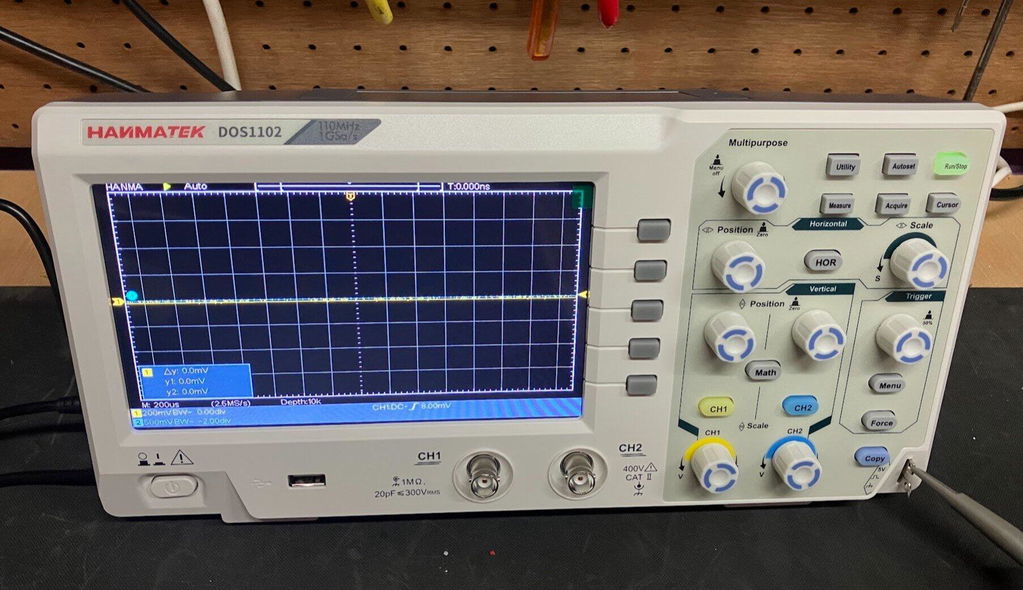
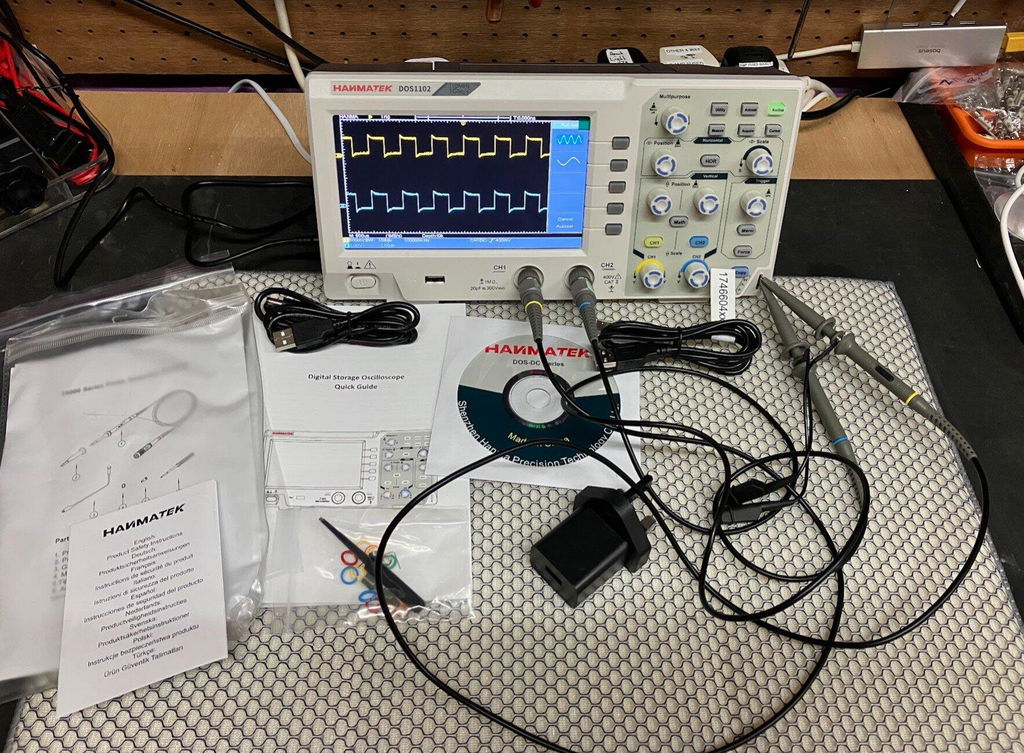
The Hanmatek DOS1102S is an excellent 110 MHz digital oscilloscope with a built-in waveform generator. It offers reliable Edge and Video triggering, plus Auto, Normal, and Single modes — making it very capable of capturing fast signals for hobbyists, students, and engineers.
With 1 GS/s sampling (on some modes) and a clear 7-inch display, it provides the performance needed to see and stabilize high-speed waveforms without breaking the bank.
👉 Buy the Hanmatek DOS1102S Oscilloscope + Waveform Generator Here
Mastering trigger modes is the fastest way to go from a blurry, unstable screen to clear, professional waveform captures — especially when dealing with fast signals.
Start with Auto to see your signal, switch to Normal for stability, and use Single when hunting rare events. Combine it with a good Edge trigger setting, and you’ll unlock the real power of your oscilloscope.
Have you struggled with unstable waveforms before? Which trigger mode helped you the most? Share your experience in the comments!
{"one"=>"Sélectionnez 2 ou 3 articles à comparer", "other"=>"{{ count }} éléments sélectionnés sur 3"}
Sélectionnez le premier élément à comparer
Sélectionnez le deuxième élément à comparer
Sélectionnez le troisième élément à comparer


Laisser un commentaire